
About Purchase History
Steps to check your purchase history
Open the UNIQLO app or website.
- 1. Tap the Person symbol in the top right or bottom right corner
- 2. Tap [Purchase History] (login required)
Image Example: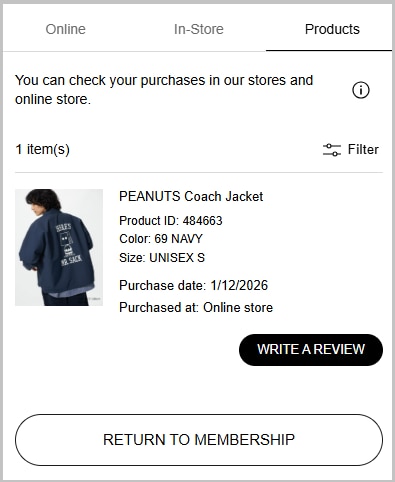
- - Online: History of purchases from the online store.
- - In-Store: History of purchases made within a UNIQLO store once membership is scanned.
- - Product: History of products purchased online and in-stores.
For each order, you can view the order details (e.g., product, order status, shipping company, etc.) and the invoicet.
In addition, you can view receipts, request exchanges and returns, and cancel orders from your purchase history.
When does the order appear in my history?
- - Online orders will appear once it has been placed.
How long does the purchase stay in my history
- - The transaction will stay in your history within 15 months from the date of purchase.
After 15 months, you can check the purchased products from the [Product] tab.
Please Note:
- - For split shipments, purchase details and invoices will be issued separately.
- - Purchase statements can be used as invoices. Please print it out as needed.
- - If you close your online account, you will not be able to access your purchase history. Please consider saving it yourself before deleting your membership account.
E-receipts for in-store purchases will be displayed in the In-Store tab. Please note that the E-Receipt option is needed to be selected at the time of checkout once membership is scanned in.
We are unable to add in-store purchases to the Purchase if the option is not selected at the time of purchase.
*Products purchased at the store can be checked in the [Product] tab.
You can check the products you purchased at the online store or store.
*In-store purchases will be recorded when you scan your membership card (QR code or barcode) at the time of payment.
How are products added to my Purchase History?
- - In-Store: Please present your membership (barcode) from the app or mobile website at the time of payment. It is not possible for transactions to be added to the history after checkout.
- - Online: Once the order is placed, it is automatically recorded in your Purchase History.
When does it appear in my Purchase History
- - In-Store: Products will appear after the date of purchase.
- - Online: Products will appear once the order is shipped.
*The list in the Product tab cannot be deleted.
 BY CHAT